


For quick voice edits on an iPhone, start with Apple’s free Voice Memos app. If you record podcasts, interviews or voice-overs, Ferrite Recording Studio is the best dedicated editor, and Hokusai Audio Editor is the simplest multitrack option. All of the apps below are on the App Store and free to download, with paid upgrades for the bigger tools.
Quick picks
| App | Best for | Price (checked November 2026) |
|---|---|---|
| Voice Memos | Trimming and replacing parts of a recording | Free, built in |
| Ferrite Recording Studio | Podcasts, interviews and voice-overs | Free; Ferrite 3 Pro $29.99 |
| Hokusai Audio Editor | Simple multitrack cutting and effects | Free; Hokusai 3 Pro $9.99 a year |
| Lexis Audio Editor | Noise reduction and format conversion | Free; MP3 export $9.99 |
| WavePad | Lots of effects and file formats | Free with ads; upgrades from $0.99 |
| GarageBand | Voice over music, multitrack songs | Free |
What to look for in a voice editing app
Voice editing means cleaning up spoken audio: cutting mistakes and long pauses, lowering background noise, evening out volume and exporting in a format your podcast host, video editor or messaging app accepts. Music apps can do some of this, but a voice-first editor saves time.
- Non-destructive edits so you can undo a bad cut later.
- Noise reduction and levelling for recordings made in noisy rooms.
- Export formats: MP3 for podcasts, WAV or M4A for video editors.
- Files and iCloud support so you can move audio to your Mac.
Best voice editing apps for iPhone
Voice Memos: free edits built into iOS
Voice Memos is already on your iPhone, and it handles more than most people expect. Tap a recording, tap the three dots, then Edit Recording to trim the start and end, or drag to a section and tap Replace to re-record a fluffed sentence. Apple’s App Store listing also lists transcription, a Save As option that keeps the original intact, and, on supported models, recording a vocal layer over an instrumental track.
Its limit is that you can’t cut out a section in the middle or add effects. When you need that, move to one of the apps below.
Ferrite Recording Studio: best for podcasts and interviews
Ferrite comes from Wooji Juice, the developer of Hokusai, and it’s built for spoken audio. You can bookmark moments while you record, then jump to them while editing, which is handy for interviews. The editor is full multitrack, with fades, crossfades and per-track volume.
The free version limits how long a recording or project can be. Ferrite 3 Pro ($29.99 one-time in-app purchase) removes that and adds noise reduction, auto levelling, EQ, compression and Tighten Audio, which takes out awkward pauses for you. Version 3.3.1 needs iOS 26.6 or later.
Pros
- Made for voice work, not music
- Bookmarks during recording speed up editing
- Pro is a one-time purchase, not a subscription
Cons
- Free version limits project length
- Needs a recent iOS version
Hokusai Audio Editor: easiest multitrack editor
Hokusai shows your audio as a waveform you can pinch to zoom, and you hear the audio under your finger as you scrub. That makes it easy to find and remove pauses or coughs. Cut, copy, paste, fades, normalising and full undo are free.
The Hokusai 3 Pro subscription ($9.99 a year) adds more than 50 tools, including noise reduction, time-stretching, pitch-bending, reverb, multi-microphone recording and MP3 export.
Pros
- Clean, touch-friendly waveform editor
- Undo history survives closing the project
- Good free toolset for basic cuts
Cons
- Noise reduction and MP3 export need Pro
- Pro is now a yearly subscription
Lexis Audio Editor: best for cleanup and conversion

Lexis looks plain, but its toolset is long: cut, copy, paste, trim, fades, normalising, noise reduction, a 10-band equaliser, a compressor, and tempo, speed and pitch changes. Newer versions add a voice cleaner, reverb removal and a splitter that separates vocals from accompaniment.
It imports MP3, WAV, FLAC, M4A, AAC and WMA, plus audio from MP4 video files. According to its App Store page, MP3 export and the vocal splitter are $9.99 in-app purchases each.
Pros
- Wide format support, including audio from video
- Noise reduction and EQ in one place
- Exports and imports via iCloud
Cons
- No multitrack editing
- Dated interface
- MP3 export costs extra
WavePad: most effects for the price
WavePad from NCH Software has the classic desktop-style editor on a phone: cut, copy, paste, insert, trim, amplify, normalise, echo and noise reduction. It can work with several files at once, auto-trims silence, and keeps recording in the background when the screen turns off.
The free version shows ads. You can pay $0.99 to remove them, buy effects and formats separately, or get all current features for $9.99. Its last update on the App Store was in August 2025, so it updates less often than the others here.
Pros
- Many effects and formats
- Background recording
- Cheap one-time purchases
Cons
- Ads in the free version
- Confusing mix of purchases and subscriptions
- Fewer recent updates
GarageBand: best for voice over music
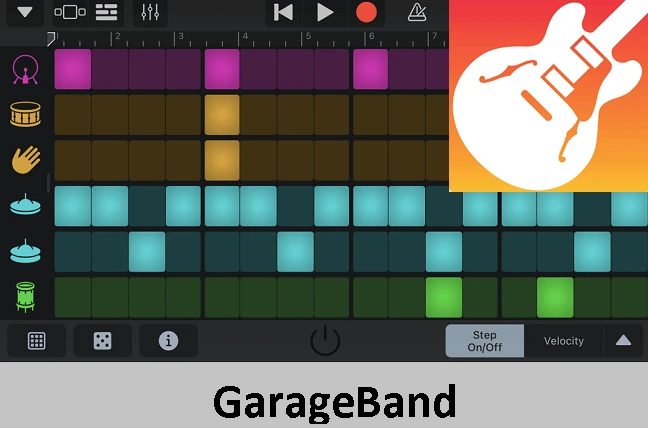
GarageBand is Apple’s free music studio, and it works well when your voice needs to sit on top of music, such as a podcast intro or a narrated video. You can record up to 32 tracks, apply effects to a microphone recording, and use free loops from the Sound Library.
For plain voice cleanup it’s more than you need, and the current version requires iOS 27. It’s free on the App Store.
Pros
- Free and made by Apple
- Up to 32 tracks
- Huge free loop and sound library
Cons
- No one-tap noise reduction for voice
- Takes time to learn
- Needs the latest iOS
If you’re editing music rather than voice
Two apps from the original version of this list are music tools, not voice editors. They’re still worth knowing about if you mix tracks.
edjing Mix for DJ-style mixing
edjing Mix turns your iPhone into a two-deck DJ setup with automatic BPM detection, loops, more than 20 effects and Stemz, which isolates vocals, drums or bass. It records sets in WAV. Mixing Spotify tracks needs Spotify Premium, and many tools sit behind a subscription.
Music Maker JAM for loop-based tracks
Music Maker JAM lets you build songs from more than 300 mix packs on an 8-channel mixer, then record your own vocals over the beat. It’s fun for quick tracks, but the vocal editing tools are basic.
Apps we removed from this list
Earlier versions included Voice PRO and Walk Band, which are Android apps, plus Auria Pro and a generic MP3 Cutter that we couldn’t match to a current App Store listing in November 2026.
Tips for better voice recordings on iPhone
- Record in a small, soft room. Clothes and curtains absorb echo better than any app can remove it.
- Keep the phone 15 to 20 cm from your mouth and slightly to the side to avoid popping sounds.
- Use an external mic for podcasts; see our guide to USB microphones for podcasting.
- Edit a copy, not the original file, so you can start over.
Making a video too? Our guides to combining videos on iPhone and Instagram Reels editing apps cover the picture side, and you can turn a clip into a ringtone with our iPhone ringtone guide.
Frequently asked questions
How do I edit a voice recording on my iPhone?
Open Voice Memos, tap the recording, tap the three dots and choose Edit Recording. Drag the yellow handles to trim it, or move the playhead and tap Replace to re-record a section. For cutting out the middle or removing noise, use an app like Ferrite or Hokusai.
Can I remove background noise from a recording on iPhone?
Yes, but not in Voice Memos. Ferrite 3 Pro, Hokusai 3 Pro, Lexis Audio Editor and WavePad all include noise reduction. It works best on steady noise like a fan; it can’t fully remove people talking in the background.
What is the best free voice editing app for iPhone?
Voice Memos is the best free option for trimming and replacing sections. If you need to cut out the middle of a recording, Hokusai’s free tools handle cut, copy, paste and fades without paying.
Can I edit audio in iMovie on iPhone?
Yes. In an iMovie project, tap the audio clip in the timeline and drag the yellow trim handles. You can also change its volume and detach audio from a video clip, which helps when your voice is part of a video.
How do I move edited audio from iPhone to my Mac?
Save or export the file to the Files app in iCloud Drive and it appears in Finder on your Mac. You can also AirDrop it, or sync Voice Memos through iCloud so recordings show up in Voice Memos on the Mac.
Which voice editing app should you use?
Try Voice Memos first, since it’s free and already installed. If you record podcasts or interviews regularly, Ferrite is worth the one-time Pro purchase. For occasional edits with a bit more control, Hokusai or Lexis will do the job without a big spend, and Mac users can finish projects in the apps from our music software for Mac list.