


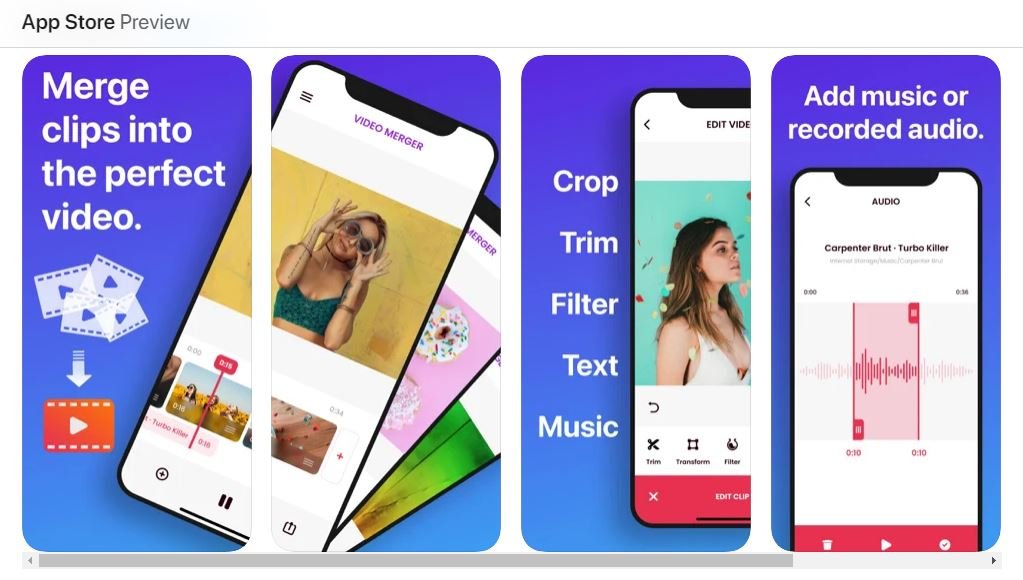
You shot three clips of the same moment — the candles, the cake, the messy slice — and now you want them as one smooth video to post or send. But your iPhone’s Photos app doesn’t have an obvious “merge” button, so the clips just sit there separately. Here’s the good news: combining videos on your iPhone is genuinely easy once you know where to look, and you can do it completely free without installing anything sketchy.
In this guide we’ll walk through the two best free Apple ways to combine videos on iPhone — iMovie and Apple Clips — plus when a third-party editor is worth it. Every method is app-by-app, step-by-step, with the little gotchas (orientation, quality, export settings) that trip most people up. Let’s get your clips stitched together.
⚡ Quick Answer: Which method should you use?
- Best free all-rounder: iMovie — Apple’s own editor. Combine clips, add transitions and music, export up to 4K. Free.
- Fastest for a quick social clip: Apple Clips — tap clips together in seconds, no timeline to learn. Free.
- Most control (creators): a dedicated third-party editor — see our picks below.
Before You Start: What You’ll Need
- The video clips you want to merge, already saved in your Photos app.
- A little free storage — the merged file is roughly the size of all your clips combined.
- A free app: iMovie or Apple Clips from the App Store (neither comes pre-installed on newer iPhones, but both are free from Apple).
💡 Quick tip before you merge: for the cleanest result, shoot (or crop) all your clips in the same orientation — all portrait or all landscape. Mixing the two forces the editor to add black bars around the odd one out.
Method 1: Combine Videos with iMovie (Best Free Option)
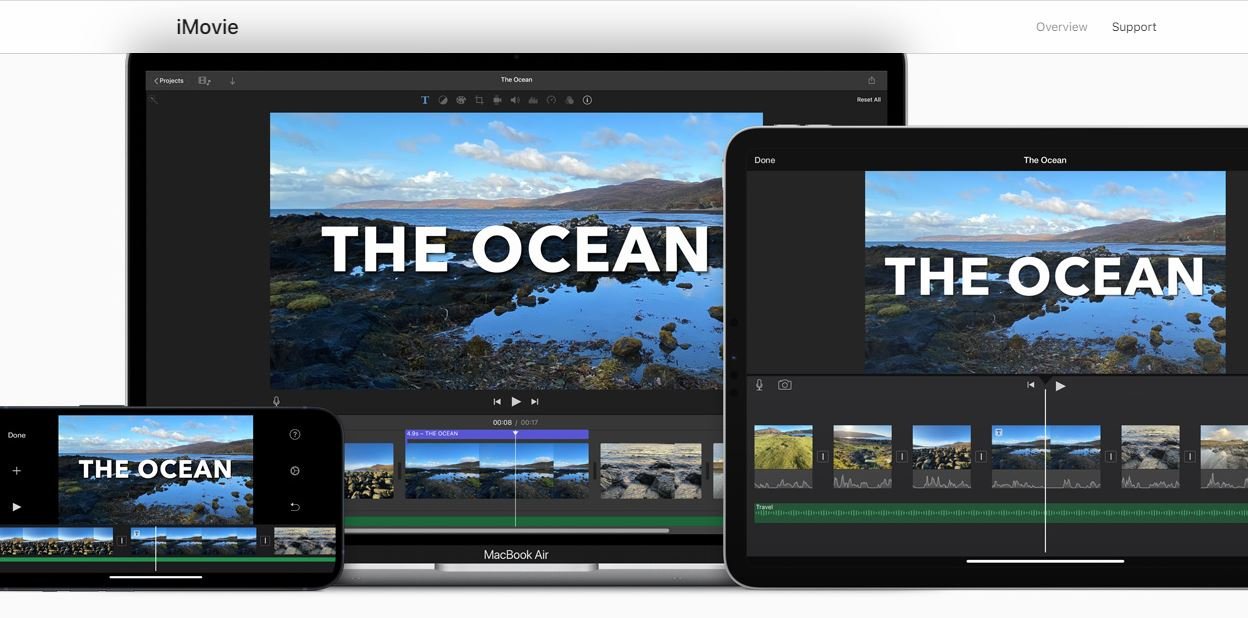
iMovie is Apple’s free video editor for iPhone and Mac, and it’s the method we reach for most. It doesn’t just glue clips together — it lets you reorder them, trim the boring bits, drop in transitions, add music, and export in crisp quality up to 4K. If you only learn one method, make it this one.
How to combine videos on iPhone using iMovie
- Install iMovie. Grab it free from the App Store if it isn’t already on your iPhone, then open it.
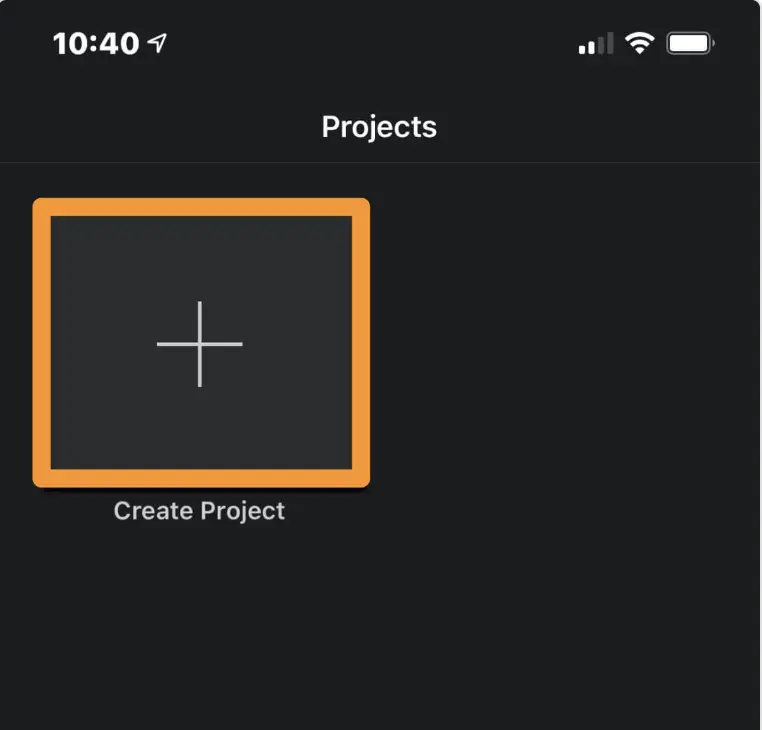
- Start a project. Tap the Projects tab, then Create Project (or the + button).
- Choose Movie. Pick Movie (not Trailer) — that’s the free-form editor for combining clips.
- Select your clips. Tap every video you want to merge, in the order you want them, then tap Create Movie at the bottom. iMovie drops them onto one timeline, back to back.
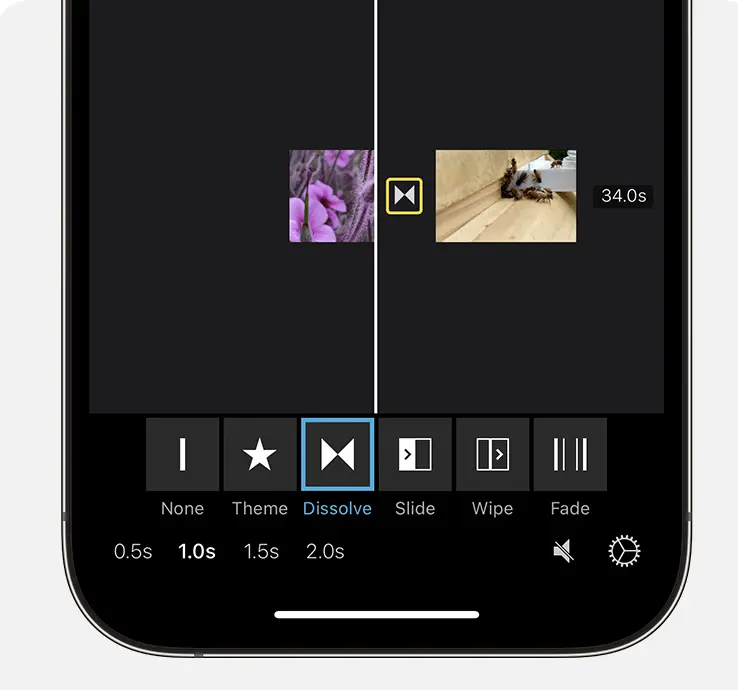
- Polish (optional). Drag to reorder, tap a clip to trim it, tap the join between clips to add a transition, or add music from the audio menu.
- Export. Tap Done (top-left), then the Share icon → Save Video, and choose your resolution. Your combined clip lands back in Photos.
That’s it — two (or ten) clips become one file, for free. Once it’s saved, you can AirDrop or share it to another Apple device just like any other video.
Method 2: Combine Videos with Apple Clips (Fastest for Social)
If iMovie’s timeline feels like overkill and you just want clips joined now for Instagram, WhatsApp, or Messages, Apple Clips is the shortcut. It’s Apple’s free, super-simple app built for quick social videos — no timeline, no learning curve. You literally add clips and they stack together.
- Install Clips free from the App Store and open it.
- Tap New to start a project, then the Library tab to reach your Photos videos.
- Add your first clip — tap it, then press and hold (or tap) Add to drop it in.
- Repeat for each clip in order; they join automatically end to end. Add stickers, captions, or music if you like.
- Tap the Share button → Save Video to send the merged clip to Photos.
✅ Our take: we ran both on a current iPhone — use iMovie when you care about transitions, trimming, and export quality; use Clips when you just need a merged video in under a minute for a story or a chat.
Method 3: Want More Control? Use a Third-Party Editor
iMovie and Clips cover 90% of people. But if you’re making polished content — layered audio, keyframes, speed ramps, fancy transitions — a dedicated editor earns its place. Popular free options on the App Store include CapCut, Splice, and InShot; each merges clips and adds far more creative control (some behind an optional paid tier).
We compare the best of them in our roundup of the best Instagram Reels editing apps for iPhone — all of which combine clips — and if you edit on a Mac too, see the best video editors for Mac.
Common Mistakes to Avoid
- Mixing portrait and landscape clips. You’ll get black bars around the odd one. Match orientation first, or crop inside the editor.
- Adding clips in the wrong order. iMovie and Clips place clips in the order you tap them — select them in sequence, or reorder before exporting.
- Exporting at a low resolution. Choose the highest quality (up to 4K in iMovie) so your merged video doesn’t look soft.
- Editing after merging. Trim and tidy each clip before you combine — splitting them apart again afterward is fiddly.
- Running out of storage mid-export. The final file needs room roughly equal to all clips combined; free up space if it fails to save.
Also read:
- How to Screen Record on Any iPhone
- How to Download YouTube Videos on iOS Devices
- How to Take a Screenshot on a Mac and Other Devices
Frequently Asked Questions
Can I combine videos on iPhone for free?
Yes. Apple’s own iMovie and Apple Clips apps both combine videos for free with no watermark. iMovie is best for editing and export quality, while Clips is fastest for quick social videos. Download either free from the App Store.
Does the iPhone have a built-in way to merge videos?
The Photos app cannot merge two videos into one on its own. Apple’s free iMovie app is the built-in Apple solution and is the closest thing to a native tool. It takes about a minute to install and use.
Will merging videos reduce their quality or resolution?
Not if you export at full quality. The merged video keeps the quality of your source clips, and iMovie can export up to 4K. Quality only drops if you choose a lower export resolution or use a compressing app.
Can I combine portrait and landscape videos together?
Yes, but the editor adds black bars around whichever clip does not match the project orientation. For a clean result, use clips in the same orientation, or crop the odd one inside iMovie before exporting.
How do I add music or transitions when combining clips?
In iMovie, tap the join between two clips to pick a transition, and use the audio menu to add music or a soundtrack. Apple Clips lets you add music, stickers, and captions from its toolbar before you export.
Can I reorder or trim clips before merging them?
Yes. iMovie lets you drag clips to reorder and tap any clip to trim it before exporting. It is best to trim and arrange everything before you combine, since splitting a merged file back apart is much harder.
How do I save or export the merged video?
In iMovie, tap Done, then the Share icon and Save Video, choosing your resolution. In Clips, tap Share then Save Video. Either way the finished, combined clip is saved straight to your Photos library.
What is the best app to combine videos on iPhone?
For most people, iMovie is the best free choice thanks to its editing tools and 4K export. Apple Clips wins for speed on quick social clips, and third-party editors like CapCut or Splice suit creators who want advanced control.
Final Verdict
Combining videos on your iPhone isn’t a paid-app problem — it’s a two-minute job once you know the tools. For almost everyone, iMovie is the answer: it’s free, it’s from Apple, and it handles trimming, transitions, music, and 4K export in one place. When you just need clips joined fast for a story or a chat, Apple Clips does it in under a minute.
One last tip: match your clip orientation and export at the highest quality — those two habits fix the problems people blame on the app. Next step: open iMovie, drop in two clips, and export a test merge; once you’ve done it once, you’ll never wonder how again. Making polished content? Start with our Reels editing apps roundup.




![TablePlus Review [year]: Features, Pricing, Pros & Cons](https://myappleguide.b-cdn.net/wp-content/uploads/2025/07/TablePlus-Review-Features-Pricing-Pros-Cons-150x150.webp)

![How to do Live Stream on iPhone in [year]](https://myappleguide.b-cdn.net/wp-content/uploads/2023/10/How-to-do-Live-Stream-on-iPhone-in-year.webp)