


The MacBook keyboard shortcuts worth learning first are Command-C, Command-V and Command-Z for editing, Command-Tab to switch apps, Command-Space bar for Spotlight and Shift-Command-5 for screenshots. Below are 35 shortcuts in six groups, each checked against Apple’s own list in November 2026, so you can learn one group at a time.

How to use MacBook keyboard shortcuts
Hold the modifier keys first, then press the last key. For Command-C, hold Command, press C, then let go of both. The modifier keys are Command (⌘), Option (⌥), Control (⌃), Shift (⇧) and Fn or Globe, which sits in the bottom-left corner of a MacBook keyboard.
On a Windows keyboard connected to a Mac, use Alt for Option and the Windows key for Command. To use the top row as F1 to F12 instead of brightness and volume, hold Fn while you press them.
Editing shortcuts you will use every day
| Shortcut | What it does |
|---|---|
| Command-C / Command-X | Copy or cut the selected item |
| Command-V | Paste. Works for files in Finder too |
| Option-Shift-Command-V | Paste and match the style of the surrounding text |
| Command-Z / Shift-Command-Z | Undo, then redo |
| Command-A | Select all |
| Command-F | Find text in a document or web page |
| Command-S | Save the current document |
Switching apps and windows
These save the most time on a MacBook because the screen is small and you often have several apps open.
| Shortcut | What it does |
|---|---|
| Command-Tab | Switch to the last app you used. Keep holding Command and press Tab to move along |
| Command-Grave accent (`) | Switch between windows of the same app |
| Command-W | Close the front window. Option-Command-W closes all windows of that app |
| Command-Q | Quit the app |
| Command-H | Hide the front app. Option-Command-H hides every other app |
| Command-M | Minimise the front window to the Dock |
| Option-Command-Esc | Open Force Quit for an app that has stopped responding |
| Control-Command-F | Use the app in full screen, if it supports it |
You can also snap windows into place: Fn-Control-Left Arrow moves the window to the left half of the screen and Fn-Control-Right Arrow to the right half. Apple lists the rest in its window tiling shortcuts guide. To close lots of apps at once, our QuitAll review covers a menu bar tool for it.
Search, screenshots and system shortcuts
| Shortcut | What it does |
|---|---|
| Command-Space bar | Open Spotlight to search for apps, files and settings |
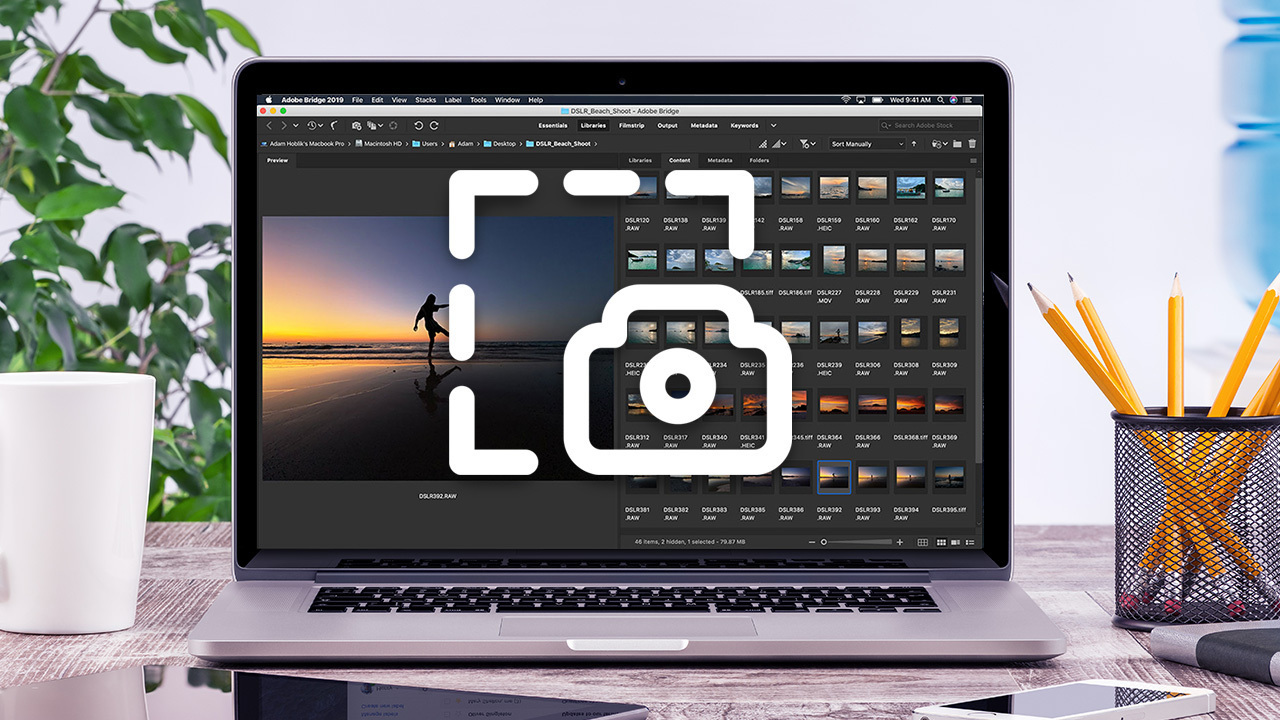
| Shift-Command-5 | Open the screenshot and screen recording toolbar |
| Shift-Command-3 / Shift-Command-4 | Capture the whole screen, or drag to capture part of it |
| Control-Command-Q | Lock your screen |
| Control-Command-Space bar or Fn-E | Open the emoji and symbols viewer |
| Fn-Q | Start a Quick Note |
| Command-Comma (,) | Open settings for the front app |
For every screenshot option, including timed shots and saving to the clipboard, see our guide on how to take a screenshot on a Mac.
Finder shortcuts for files and folders
| Shortcut | What it does |
|---|---|
| Space bar | Preview the selected file with Quick Look |
| Command-Delete | Move the selected item to the Bin |
| Command-D | Duplicate the selected files |
| Command-I | Show the Get Info window |
| Shift-Command-N | Create a new folder |
| Option-Command-L | Open the Downloads folder |
Text navigation shortcuts
These work in most text fields, from Notes to Safari’s address bar.
| Shortcut | What it does |
|---|---|
| Option-Delete | Delete the whole word to the left |
| Command-Left Arrow / Command-Right Arrow | Jump to the start or end of the line |
| Option-Left Arrow / Option-Right Arrow | Jump one word at a time |
| Command-Up Arrow / Command-Down Arrow | Jump to the start or end of the document |
Safari shortcuts for browsing
| Shortcut | What it does |
|---|---|
| Command-L | Select the address bar |
| Command-T | Open a new tab |
| Shift-Command-T | Reopen the last tab you closed |
Want more? Our full list of Mac keyboard shortcuts by category covers Finder, accessibility and app-specific shortcuts in depth, and Apple keeps its complete Mac keyboard shortcuts list up to date with each macOS release.

Frequently asked questions
Why are my Mac keyboard shortcuts not working?
Another app or a system shortcut may be using the same keys. Open System Settings > Keyboard > Keyboard Shortcuts and look for conflicts, then change one of them. Also check that the app you are in has the menu command the shortcut belongs to.
How do I create my own keyboard shortcut on a Mac?
Go to System Settings > Keyboard > Keyboard Shortcuts > App Shortcuts and click the add button. Pick the app, type the exact menu command name, then press the key combination you want to use.
How do I use F1 to F12 on a MacBook?
Hold Fn or Globe while pressing a top-row key. To make them work as standard function keys all the time, turn on “Use F1, F2, etc. keys as standard function keys” in System Settings > Keyboard > Keyboard Shortcuts > Function Keys.
What is the Mac shortcut to right-click?
Hold Control and click, or click with two fingers on the trackpad. Both open the same shortcut menu as a right-click on a mouse.
Is there a shortcut to see all open windows on a Mac?
Press Control-Up Arrow to open Mission Control, which shows every open window. Control-Down Arrow shows only the windows of the app you are using.
Learn the editing and app-switching groups this week and add one new group each week after that. Once they stick, these shortcuts pair well with the other cool things you can do with a MacBook Pro.